
- Getting Started
- FAQ
- App
- DOT Remote Downloads
- Glossary of Terms
- Training Plus
- Tutorials
- Overview and Modules
Getting started with Tachomaster
This page will help guide you through uploading your first Driver Card and viewing the data online.
Before following the instructions in this guide you will need to have a Tachomaster account. If you do not already have an account, you can sign up for a 28 Day Free Trial on the Sign Up page.
On this page
Uploading Your First Driver Card
To upload a Driver Card you can either download and use the Tachomaster Client, or use the Java enabled Online Card Reader.
Using the Tachomaster Client
Setting up the Tachomaster Client
If you have already installed the Tachomaster Client, you can skip this step.
Firstly, you will need to download the Tachomaster Client. Follow the instructions on the Install page for help installing the software.
Once you have successfully installed the Tachomaster Client open the application and you will be presented with a Setup box as follows:
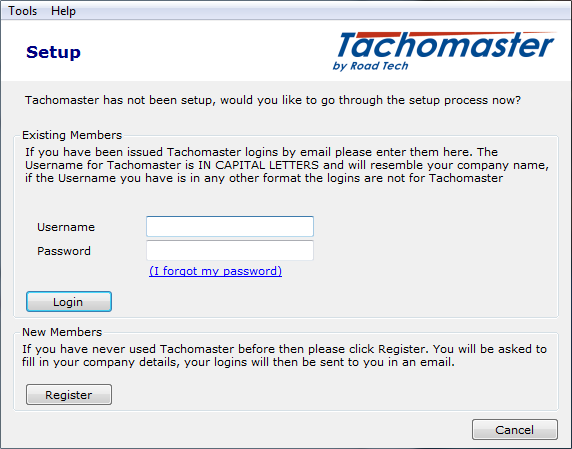
- Login with your Tachomaster Administrator account to set up Tachomaster for the first time.
After a few moments the first-time setup is complete and you will be prompted with a Login window.
Login and Download a Driver Card
Log in to Tachomaster using your account username and password:
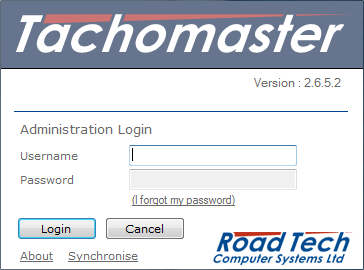
You will be presented with the main Tachomaster Client window with the application menu down the left hand side.
- Click
Digital Card Readerto continue.
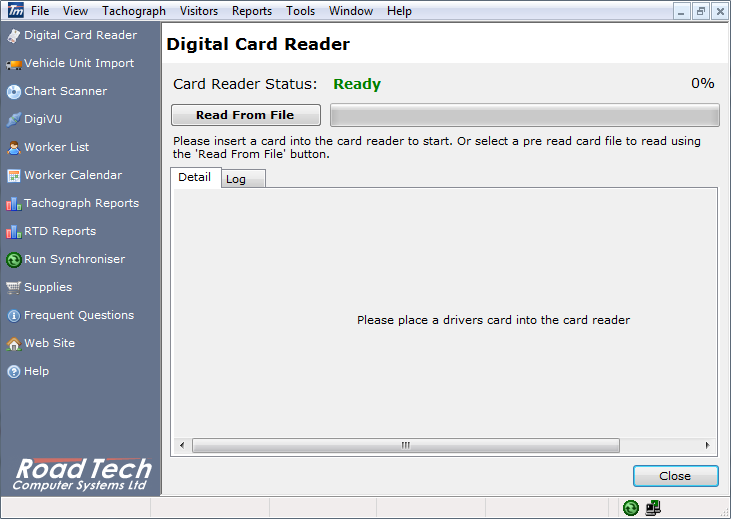
When you see the screen above you are ready to insert a Driver Card to be read.
- Insert a Driver Card in to the Smart Card Reader
Wait while the Driver Card is read. As Tachomaster has not seen this Driver before there is some initial setup to perform on the driver.
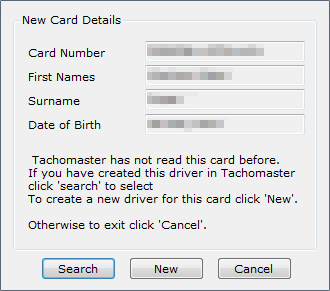
- Click
Newto setup the new Driver
Take care to fill in all details correctly and click OK when you are done setting up the new Driver.
You will return to the Digital Card Reader and be presented with the Quick Analysis Screen. This view gives you a quick overview of the data that has just been uploaded to Tachomaster - this view is in no way exhaustive, but will bring to light any major Infringements and display a working pattern.
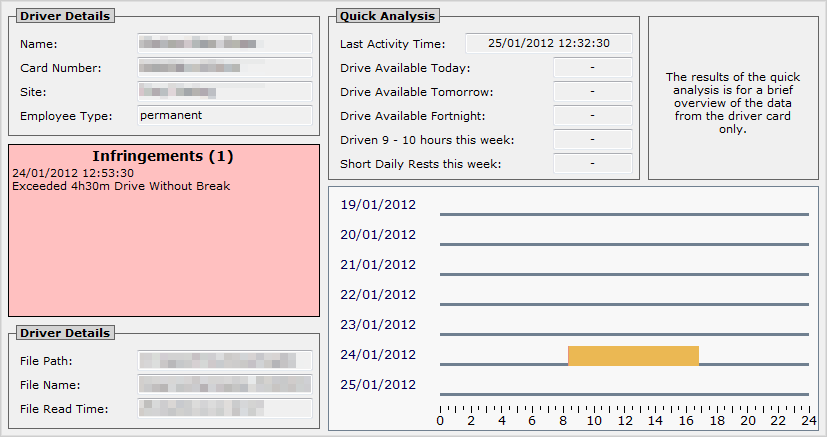
Now that you have completed a Driver Card upload, you can view the data on the Tachomaster Website.
Viewing Your Data
There are various ways to view the data on Tachomaster, depending on your preferences and requirements. For this introduction we will concentrate on viewing the Worker Calendar to give an overview of your newly updated Worker data.
Log in to the Web Site
Log in to the Tachomaster Website with your Tachomaster User details.
View the Worker Calendar
- From the main menu, select
Calendarand thenWorker Calendaras shown below.
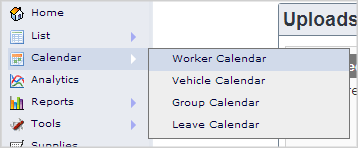
The following screen allows you to select the Worker you wish to view.
- Select the Worker from the drop-down list
You will now be presented with the Worker Calendar:
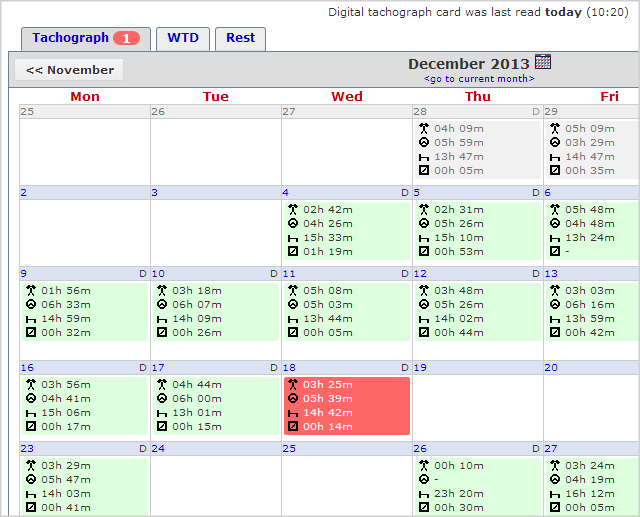
The Calendar displays above it the last time the Driver Card was read for the Driver.
The main Calendar view displays the Tachograph times as read from the Driver Card. Each day shows 4 lines for Other Work, Driving, Rest and Availability respectively. If you see any red days here (like in the image above), those days contain EU Tachograph Infringements.
- Click the
WTDtab
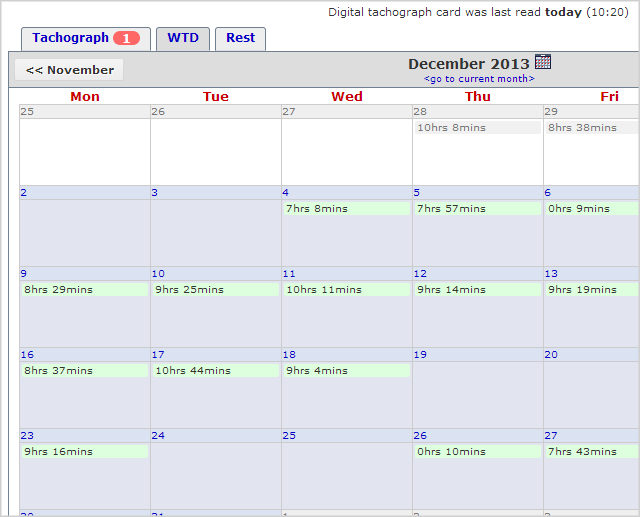
The WTD tab displays the times as seen by the Working Time Directive. Simply put, the times are the values of Other Work and Drive added together. Any red lines on this calendar identify WTD Infringements.
- Click the
Resttab
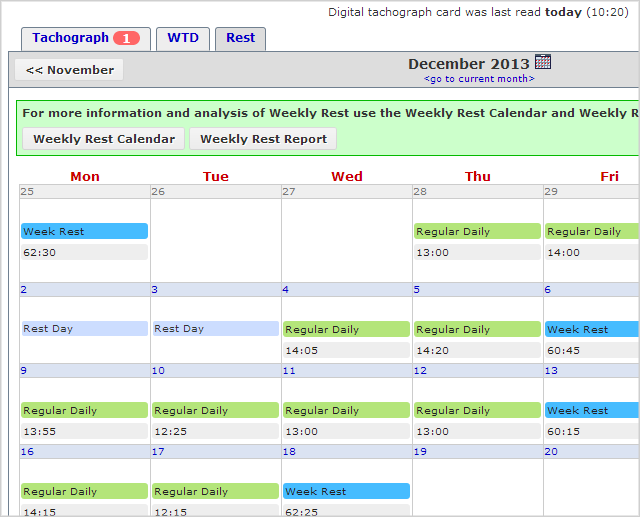
The Rest Calendar shows daily and weekly rest periods along with their duration. Colours other than the blue and green of regular Week Rest and regular Daily Rest indicate specific cases and will be labelled.
This is a very light overview of the Worker Calender. To venture further in to the data try:
- clicking on a day for a detailed breakdown
- right-clicking a day to add and remove Leave and Rest Days
- viewing the detailed Weekly Rest Calendar or Weekly Rest Report from the Rest tab.
More information can be found in the Worker Calendar Tutorial.
Looking for more?
View some of the Tachomaster Tutorials and videos for lots more information.